Filters
Filters /filters:NAME(ARGS):NAME(ARGS):.../ is a pipeline of image operations that will be sequentially applied to the image. Examples:
/filters:fill(white):format(jpeg)/
/filters:hue(290):saturation(100):fill(yellow):format(jpeg):quality(80)/
/filters:fill(white):watermark(raw.githubusercontent.com/cshum/imagor/master/testdata/gopher-front.png,repeat,bottom,10):format(jpeg)/
Filters are grouped into:
- Processing Filters — image transforms
- Utility Filters — pipeline control
- Metadata Filters — for the
/metaendpoint
Processing Filters
background_color(color)
Sets the background color of a transparent image.
color— the color name or hexadecimal rgb expression without the#character
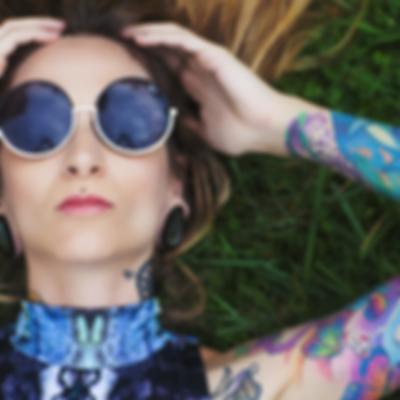
blur(sigma)
Applies gaussian blur to the image.
This filter is a no-op for animated images.
sigma— blur sigma value
blur(5) |
|---|
 |
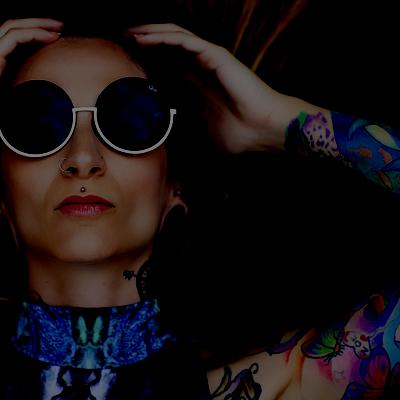
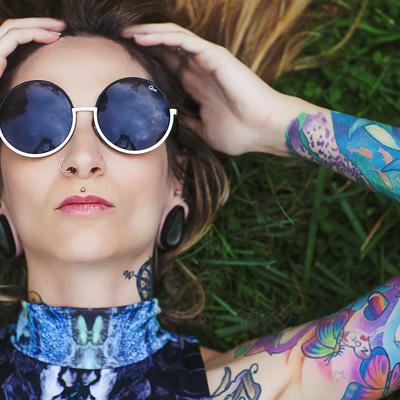
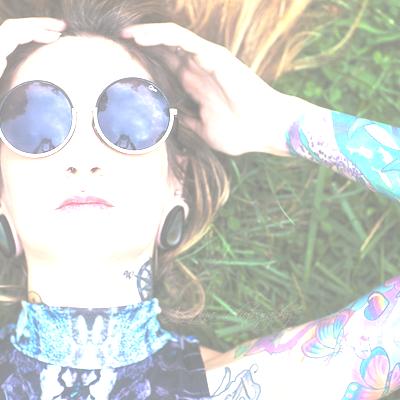
brightness(amount)
Increases or decreases the image brightness.
amount— -100 to 100, the amount in % to increase or decrease the image brightness
brightness(-50) | brightness(0) | brightness(50) |
|---|---|---|
 |  |  |
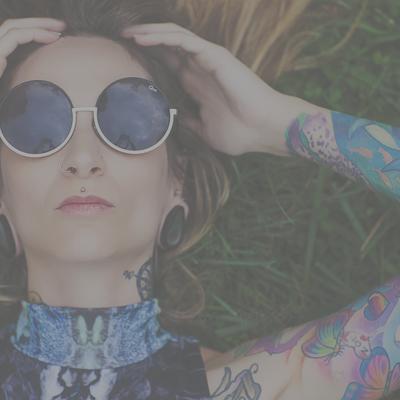
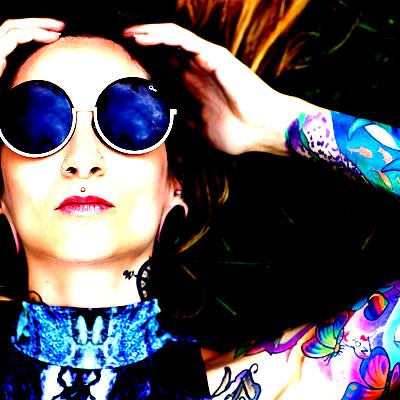
contrast(amount)
Increases or decreases the image contrast.
amount— -100 to 100, the amount in % to increase or decrease the image contrast
contrast(-50) | contrast(0) | contrast(50) |
|---|---|---|
 | |  |
crop(left,top,width,height)
Crops the image after resizing.
- Absolute pixels:
crop(10,20,200,150)— crop 200x150 box starting at (10,20) - Relative (0.0–1.0):
crop(0.1,0.1,0.8,0.8)— crop using percentages
draw_detections()
Draws color-coded bounding boxes on detected regions. Each class name is automatically assigned a distinct colour via hash-based palette. For use with detection plugins such as imagorface. No-op when no Detector is configured.
dpi(num)
Specifies the DPI to render at for PDF and SVG.
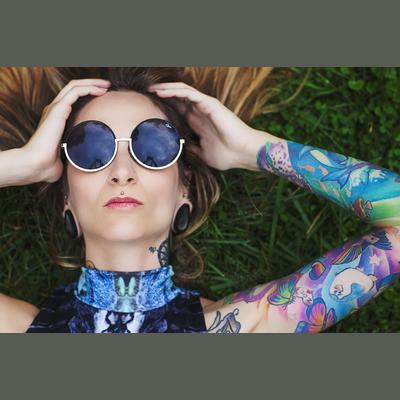
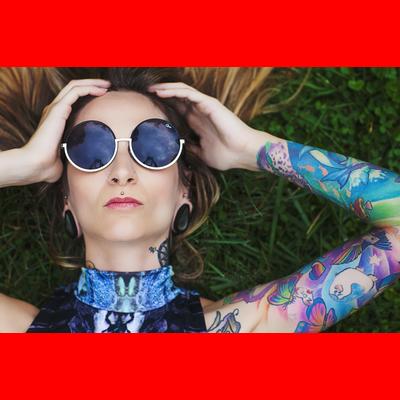
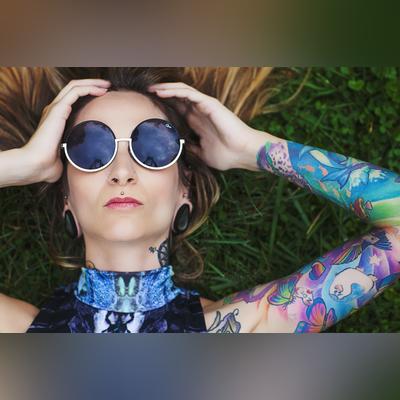
fill(color)
Fills the missing area or transparent image with the specified color. Commonly used with fit-in to fill the letterboxed areas.
color— color name or hexadecimal rgb expression without the#characterblur— missing parts are filled with a blurred original imageauto— the average color of the image will be used as the filling colornone— the filling becomes fully transparent
fill(auto) | fill(red) | fill(blur) |
|---|---|---|
 |  |  |
focal(AxB:CxD) or focal(X,Y)
Adds a focal region or focal point for custom transformations.
- Coordinated by a region of left-top point
AxBand right-bottom pointCxD, or a pointX,Y. - Also accepts float values between 0 and 1 that represent a percentage of image dimensions.
format(format)
Specifies the output format of the image.
format— acceptsjpeg,png,gif,webp,avif,jxl,tiff,jp2
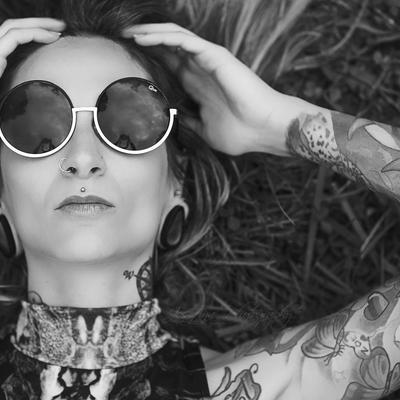
grayscale()
Changes the image to grayscale.
grayscale() |
|---|
 |
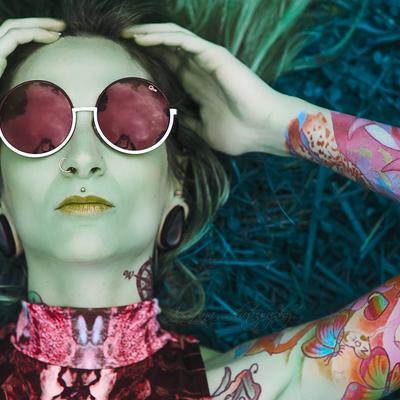
hue(angle)
Increases or decreases the image hue.
angle— the angle in degrees to increase or decrease the hue rotation
hue(90) |
|---|
 |
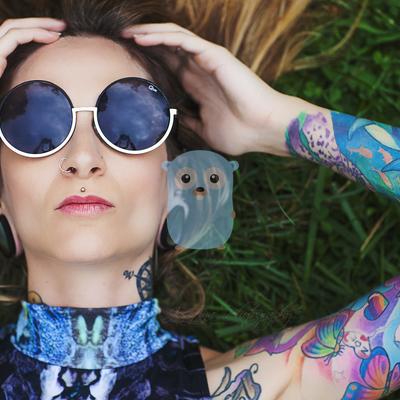
image(imagorpath, x, y[, alpha[, blend_mode]])
Composites a processed image onto the current image with full imagor transformation support, enabling recursive image composition.
imagorpath— an imagor path with transformations e.g./200x200/filters:grayscale()/photo.jpg- The nested path supports all imagor operations: resizing, cropping, filters, etc.
- Enables recursive nesting — images can load other processed images
- Use
full(orf) in theWxHdimension segment to inherit the parent image's width or height.fullmeans the full parent dimension;full-NNNmeans the parent dimension minus NNN pixels. Examples:fullxfull/overlay.png(orfxf) — overlay fills the parent canvas exactlyfit-in/full-20xfull-20/overlay.png(orfit-in/f-20xf-20) — overlay fits within the parent canvas with a 20px inset on each sidefullx200/banner.png— overlay inherits parent width, fixed 200px height
x— horizontal position (defaults to 0 if not specified):- Positive number indicates position from the left, negative from the right
- Number followed by
pe.g.20pmeans percentage of image width leftorl,rightorr,centerfor alignment, optionally with pixel offset e.g.left-20,r-10repeatto tile horizontally- Float between 0–1 represents percentage e.g.
0.5for center
y— vertical position (defaults to 0 if not specified):- Positive number indicates position from the top, negative from the bottom
- Number followed by
pe.g.20pmeans percentage of image height toport,bottomorb,centerfor alignment, optionally with pixel offset e.g.top-10,b-20repeatto tile vertically- Float between 0–1 represents percentage e.g.
0.5for center
alpha— transparency level, 0 (fully opaque) to 100 (fully transparent)blend_mode— compositing blend mode, defaults tonormal. Supported modes:normal,multiply,screen,overlay,darken,lighten,color-dodge,color-burn,hard-light,soft-light,difference,exclusion,add,mask,mask-out
image(/fit-in/100x100/IMAGE,center,center) | image(/fit-in/100x100/IMAGE,center,center,50) | Recursive: image(filters:image(…)/OUTER,10,10) |
|---|---|---|
 |  |  |
invert()
Inverts the RGB channels of the image while preserving alpha.
lossless()
Enables lossless pixel-exact encoding for formats that support it: webp, jxl, avif, heif, jp2. No-op for jpeg (lossy only) and png (already lossless). When set, the max_bytes quality-degrade retry is skipped, since lossless output cannot be reduced by lowering quality.
For webp, libvips reinterprets the quality filter as a compression-effort knob in lossless mode with higher values producing smaller files but encode slower. quality(100) gives the smallest output.
max_bytes(amount)
Automatically degrades the quality of the image until the image is under the specified amount of bytes.
max_frames(n)
Limits the maximum number of animation frames n to be loaded.
no_upscale()
Prevents the image from being upscaled beyond its original dimensions.
orient(angle)
Rotates the image before resizing and cropping, according to the angle value.
angle— accepts0,90,180,270
page(num)
Specifies the page number for PDF, or frame number for an animated image. Starts from 1.
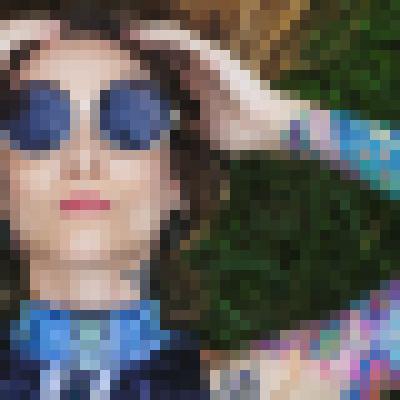
pixelate(block_size)
Applies a pixelate effect to the whole image by downscaling to 1/block_size then upscaling back with nearest-neighbour interpolation.
block_size— pixel block size in pixels, defaults to 10
pixelate(10) |
|---|
 |
proportion(percentage)
Scales the image to the specified proportion percentage of the image dimensions.
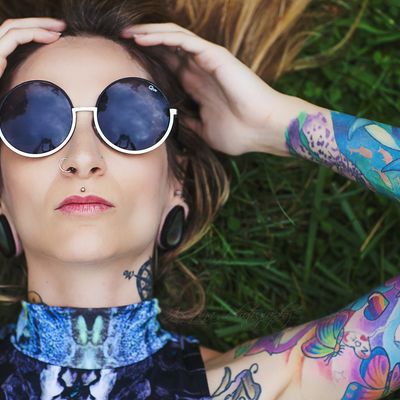
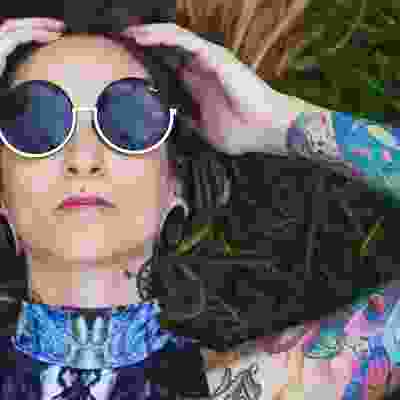
quality(amount)
Changes the overall quality of the image. Does nothing for PNG.
amount— 0 to 100, the quality level in %
quality(80) | quality(5) |
|---|---|
 |  |
redact([mode[, strength]])
Obscures all detected regions for privacy/anonymisation (e.g. GDPR face blurring, legal document redaction). Requires a detection plugin such as imagorface. No-op when no Detector is configured or no regions are detected. Skips animated images.
mode—blur(default),pixelate, or any color name/hex for solid fill (e.g.black,white,ff0000)strength— blur sigma (default 15) or pixelate block size in pixels (default 10). Not used for solid color mode.
Examples: redact(), redact(blur,20), redact(pixelate), redact(pixelate,15), redact(black), redact(white), redact(ff0000)
redact_oval([mode[, strength]])
Identical to redact but applies an elliptical mask to each region, producing a rounded/oval redaction shape. This is the most natural shape for face anonymisation as it closely follows the contour of a face. Same arguments and defaults as redact. Requires a detection plugin such as imagorface.
Examples: redact_oval(), redact_oval(blur,20), redact_oval(pixelate), redact_oval(pixelate,15), redact_oval(black), redact_oval(white), redact_oval(ff0000)
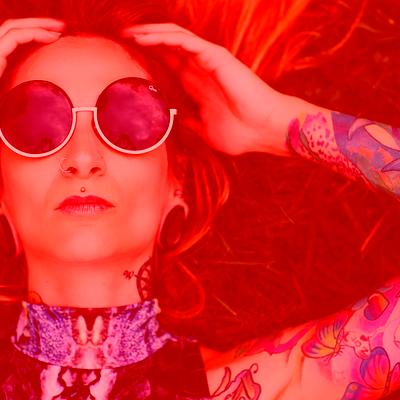
rgb(r,g,b)
Amount of color in each of the RGB channels in %. Can range from -100 to 100.
rgb(60,-30,-30) |
|---|
 |
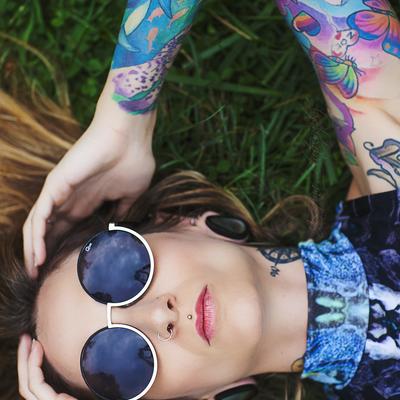
rotate(angle)
Rotates the given image according to the angle value.
angle— accepts angle in degrees.90,180,270rotate clockwise.- Negative values rotate anti-clockwise e.g.
-45for 45° anti-clockwise. - Non-orthogonal angles e.g.
45,-45expand the image dimensions to fit the rotated bounding box with transparent areas.
rotate(90) |
|---|
 |
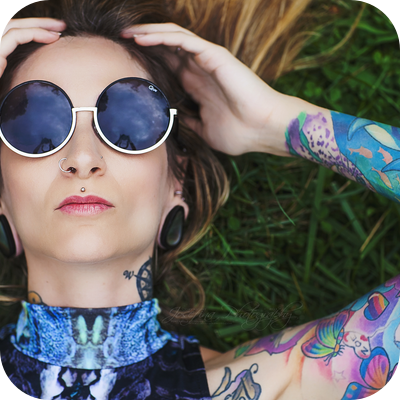
round_corner(rx [, ry [, color]])
Adds rounded corners to the image with the specified color as background.
rx,ry— amount of pixels to use as radius.ry = rxifryis not providedcolor— the color name or hexadecimal rgb expression without the#character
round_corner(50) |
|---|
 |
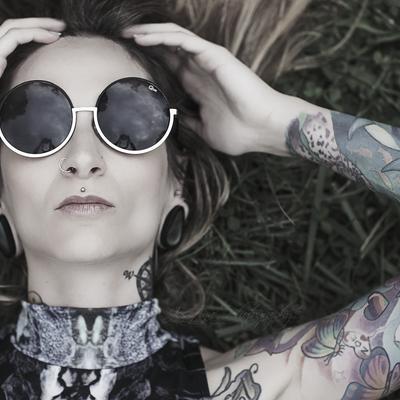
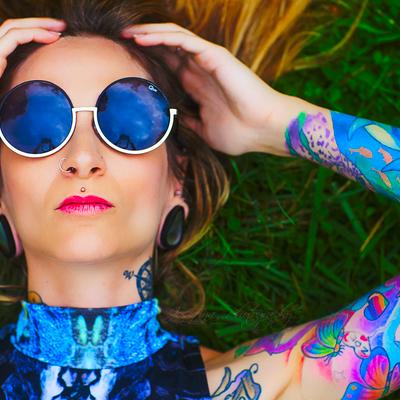
saturation(amount)
Increases or decreases the image saturation.
amount— -100 to 100, the amount in % to increase or decrease the image saturation
saturation(-80) | saturation(0) | saturation(100) |
|---|---|---|
 | |  |
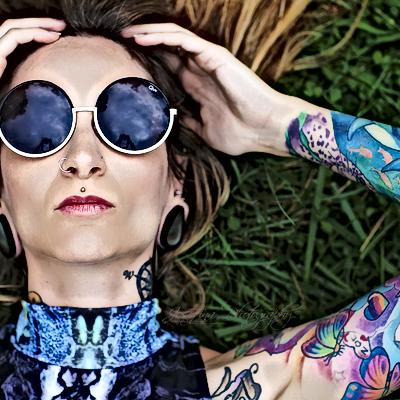
sharpen(sigma)
Sharpens the image.
This filter is a no-op for animated images.
sigma— sharpening sigma value
sharpen(3) |
|---|
 |
strip_exif()
Removes Exif metadata from the resulting image.
strip_icc()
Removes the embedded ICC color profile from the resulting image. The image is first converted to sRGB color space to preserve correct colors before the profile is removed.
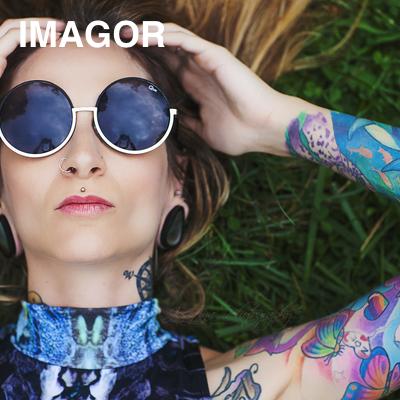
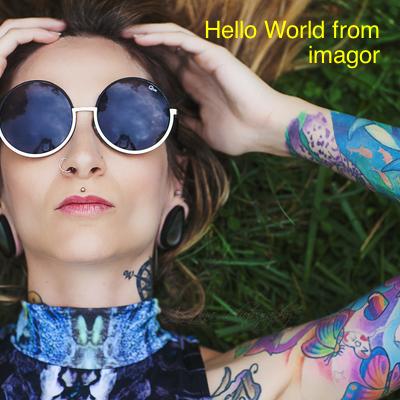
text(text, x, y[, font[, color[, alpha[, blend_mode[, width[, align[, justify[, wrap[, spacing[, dpi]]]]]]]]]])
Renders a text overlay onto the image with full multi-line and Pango font support.
text— the text to render. Supports URL query-encoding andb64:prefix for base64url encoding to safely pass arbitrary unicode or multi-word strings.x— horizontal position:- Positive number indicates position from the left, negative from the right
- Number followed by
pe.g.20pmeans percentage of image width leftorl,rightorr,centerfor alignment, optionally with pixel offset e.g.left-20,r-10- Float between 0–1 represents percentage e.g.
0.5for center
y— vertical position:- Positive number indicates position from the top, negative from the bottom
- Number followed by
pe.g.20pmeans percentage of image height toport,bottomorb,centerfor alignment, optionally with pixel offset e.g.top-10,b-20- Float between 0–1 represents percentage e.g.
0.5for center
font— Pango font description with hyphens as space separators, e.g.sans-bold-24forsans bold 24,monospace-18formonospace 18. Font size is in points; at the default 72 DPI, 1pt = 1px.color— color name or hexadecimal rgb expression without the#character, defaults to blackalpha— transparency, 0 (fully opaque) to 100 (fully transparent), defaults to 0blend_mode— compositing blend mode, defaults tonormal. Supported modes:normal,multiply,screen,overlay,darken,lighten,color-dodge,color-burn,hard-light,soft-light,difference,exclusion,add,mask,mask-outwidth— wrap width. Text wraps when a line exceeds this width. Supports the same conventions as image dimensions:- Plain integer for pixel count, e.g.
300 - Number followed by
pfor percentage of canvas width, e.g.80p - Float between 0–1 as fraction of canvas width, e.g.
0.75 forfullfor full canvas width;f-N/full-Nfor canvas width minus N pixels0or omitted means unconstrained (Pango wraps only on explicit newlines)
- Plain integer for pixel count, e.g.
align— horizontal alignment of lines within the text box:low(default, left),centre/center,high/rightjustify— justify text:trueor1wrap— line wrapping mode:word(default),char,wordchar,nonespacing— additional line spacing in pixelsdpi— render DPI, defaults to 72 (where 1pt = 1px)
text(IMAGOR,20,20,sans-bold-36,white,0) | text(b64:SGVsbG8gV29ybGQgZnJvbSBpbWFnb3I,-20,20,sans-24,yellow,0,,180,high) |
|---|---|
 |  |
to_colorspace(profile)
Converts the image to the specified ICC color profile.
profile— the target color profile, defaults tosrgbif not specified. Common values:srgb,p3,cmyk
upscale()
Enables upscaling for fit-in and adaptive-fit-in modes.
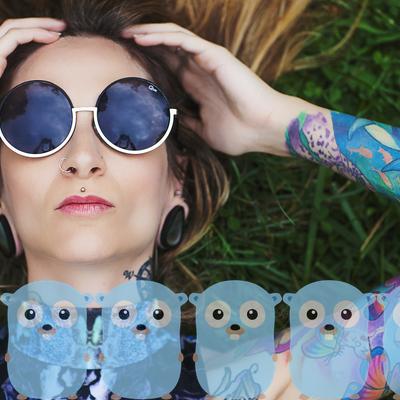
watermark(image, x, y, alpha [, w_ratio [, h_ratio]])
Adds a watermark to the image. It can be positioned inside the image with the alpha channel specified and optionally resized based on the image size by specifying the ratio.
image— watermark image URI, using the same image loader configured for imagor. Useb64:prefix to encode image URLs with special characters as base64url.x— horizontal position:- Positive number indicates position from the left, negative from the right
- Number followed by
pe.g.20pmeans percentage of image width left,right,center— positioned left, right or centered respectivelyrepeat— the watermark will be repeated horizontally
y— vertical position:- Positive number indicates position from the top, negative from the bottom
- Number followed by
pe.g.20pmeans percentage of image height top,bottom,center— positioned top, bottom or centered respectivelyrepeat— the watermark will be repeated vertically
alpha— watermark image transparency, a number between 0 (fully opaque) and 100 (fully transparent)w_ratio— percentage of the width of the image the watermark should fit-inh_ratio— percentage of the height of the image the watermark should fit-in
watermark(IMAGE,-20,-20,0,30,30) | watermark(IMAGE,repeat,bottom,30,30,30) |
|---|---|
 |  |
Utility Filters
These filters do not manipulate images but provide useful utilities to the imagor pipeline:
attachment(filename)
Returns the image as an attachment in the Content-Disposition header. The browser will open a "Save as" dialog with filename. When filename is not specified, imagor will get the filename from the image source.
expire(timestamp)
Adds expiration time to the content. timestamp is the unix milliseconds timestamp, e.g. if content is valid for 30s then timestamp would be Date.now() + 30*1000 in JavaScript.
max_age(seconds)
Overrides the HTTP Cache-Control max-age of the response, in seconds. seconds takes precedence over the configured IMAGOR_CACHE_HEADER_TTL and is not capped by it, so it can both shorten and extend the cache lifetime of a single response.
max_age(0) marks the response as non-cacheable, equivalent to IMAGOR_CACHE_HEADER_NO_CACHE. Negative or non-numeric values are ignored and the configured TTL applies.
When combined with expire(timestamp), the most restrictive of the two wins — the response is never cached past the expire deadline, nor for longer than max_age.
With IMAGOR_UNSAFE enabled, anyone can craft a URL with an arbitrarily large max_age. Use URL signatures in production.
preview()
Skips the result storage even if result storage is enabled, and opts the request into the in-memory cache when configured. Useful for preview contexts where the same source image is served at multiple transformations.
raw()
Responds with a raw unprocessed and unchecked source image. Image still loads from loader and storage but skips the result storage.
Metadata Filters
These filters add computed values to the metadata response. They require the full image to be downloaded and decoded.
blurhash(x,y)— computes a BlurHash stringthumbhash()— computes a ThumbHash stringavgcolor()— computes the average color of the image
See Metadata & Exif for full documentation and examples.